Why Your Shopify Translations Don't Show Up: A Real Store Audit
Most guides about Shopify translation stop at "translate your products". This one starts after that step, on a real store, because that is where we found the problem: the translations existed, Shopify said they were published, and not a single customer could see them.
The store is a Belgian auto-parts distributor running StoreLingo. Its catalog is written in French and has been translated into Spanish and Dutch. Everything below was checked on the live store on 24 October 2026: in the Shopify admin, in the page source of the storefront, and in the translation records themselves. We have left out the store's name and domain, and the numbers are the store's own.
The starting point: 668 translations, all "published"
The translation side looked healthy. 334 products had a translated title and description in each of the two languages, 668 records in total, every one approved and pushed to Shopify. In Settings → Languages, both Dutch and Spanish showed a green Published badge.
Then we opened a translated product in Dutch, at /nl/products/<handle>. Shopify returned its 404 page. Spanish, at /es/..., did the same.
Problem 1: a published language with no domain is invisible
The Languages page shows a column that is easy to skip: Domains.
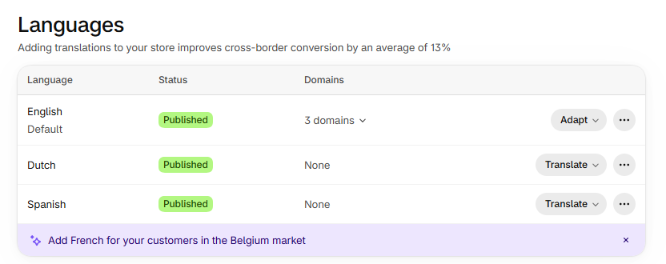 The store before the fix. "Published" but "Domains: None" means no URL serves the language.
"Published" only means the language is switched on. Since Shopify moved languages under Markets, a language also has to be assigned to a domain that a market uses, and only then does Shopify serve it under a subfolder like /nl/. Here the store had a single market (Belgium) on its primary domain, and neither language was assigned to it, so:
/nl/...and/es/...returned 404;- the page source had no hreflang tags at all, so search engines had no way to discover the translated versions either.
Nothing in the admin flags this as an error. The badge is green.
The fix
In Settings → Languages, open the ⋯ menu on each language, choose Assign to domain, and switch on the domain your market uses. For this store that was the primary domain, used by the Belgium market.
Straight after saving, the same Dutch URL loaded with the translated title and the translated specification table, and the page source now contained:
<html lang="nl">
<link rel="alternate" hreflang="x-default" href="https://<store>/products/<handle>">
<link rel="alternate" hreflang="en" href="https://<store>/products/<handle>">
<link rel="alternate" hreflang="nl" href="https://<store>/nl/products/<handle>">
<link rel="alternate" hreflang="es" href="https://<store>/es/products/<handle>">
Shopify generates these tags itself once a language is served on a domain. You do not need an app or theme code for hreflang, and if you have added some by hand you will probably end up with duplicates.
Check your own store: open Settings → Languages and look at the Domains column. If any published language says "None", it is not on your storefront.
Problem 2: the default language did not match the content
Look at the hreflang block again: it declares the main version as en. But this store's catalog is written in French, and the product page said so: a French title and French specifications, inside <html lang="en">.
The store had been created with English as its default language, and the merchant then wrote every product in French in those default fields. Shopify has no way of knowing that. It labels the content with the default language, so:
- Google is told the French pages are English, and they compete in the wrong language;
- Shopify's own system text (cart, checkout, cookie banner, "Quantity", "Taxes included") appeared in English next to French product content;
- the translation pipeline treats "English" as the source language, although the source is French.
Shopify even hinted at it with a banner on the Languages page suggesting the merchant add French for the Belgium market.
The fix
In Settings → Languages, open the ⋯ menu on the default language and choose Change default. Pick the language your content is actually written in. The dialog lists what Shopify switches to the new language: checkout and system text (cart, search, cookie banner, 404, customer accounts) and the theme. Product content is not in that list; it is the text you wrote, now labelled with the language it is actually in.
If the store was created in English by accident and never had English content, check afterwards whether you still want English published. Left on, it would serve the same French text under a second URL.
Problem 3: the same term, translated two ways
With the URLs working, we read the translated product pages. The structure had held up well. Every product description in this catalog is an HTML specification table, and the translations kept the table markup intact and left manufacturer references, TecDoc numbers and EAN barcodes untouched, which is exactly what you want for part numbers.
The wording was less consistent. The same French row label, "Référence fabricant" (manufacturer reference), came out differently in Dutch on two products:
| Product | Dutch translation |
|---|---|
| Brake pad set | Fabrikantreferentie |
| Valve cover gasket | Fabrikantverwijzing |
Both are understandable, and a human translator could have made the same slip. But on a 385,000-product catalog that is translated in batches, small differences like these add up to a store that reads as if several people wrote it. In an auto-parts catalog, where buyers scan the same table on every page, it is noticeable.
This is the case a translation glossary is for: pin "Référence fabricant" to one Dutch term once, and every later batch uses it. It is worth setting up before you translate the bulk of a catalog rather than after, because fixing it afterwards means re-translating what is already live.
What to check on your own store
Ten minutes, in this order:
- Settings → Languages → Domains column. Every published language should list at least one domain. "None" means it is invisible.
- Open a translated product at
/<language code>/products/<handle>. A 404 here confirms problem 1. - View the page source of your main product page. Look for
<link rel="alternate" hreflang=...>. No tags means no translated version is being served. - Compare
<html lang="...">with the language your content is written in. If they differ, change the default language. - Read three translated product pages side by side. Look for recurring labels translated differently, and add those to your glossary before translating more.
None of these show up as errors in the Shopify admin. The store in this audit looked fully set up from the inside, and it was only by loading the storefront as a customer would that the gaps became visible. For the wider picture of how languages, markets and domains fit together, see Shopify Markets explained and our hreflang guide for Shopify.
FAQ
Why do my Shopify translations show a 404 page? The language is published but not assigned to a domain. In Settings → Languages, use Assign to domain on that language and enable the domain your market uses.
Do I need an app to add hreflang tags on Shopify? No. Shopify adds hreflang tags automatically for every language served on a domain. If they are missing, a language is not assigned to a domain.
What does changing Shopify's default language change? According to Shopify's own dialog: checkout and system text and the theme switch to the new language. Your product content is the text you wrote; it is then labelled with the correct language.
How do I keep translated terms consistent across thousands of products? Define the recurring terms in a glossary before translating in bulk, so every batch uses the same translation for each term.
Choose from 47 languages
StoreLingo translates products, collections, pages and articles with AI — review and approve by default. On paid plans from Starter, auto-translate is off by default and publishes new or updated products automatically. Keep your brand terms consistent.
Add to Shopify →